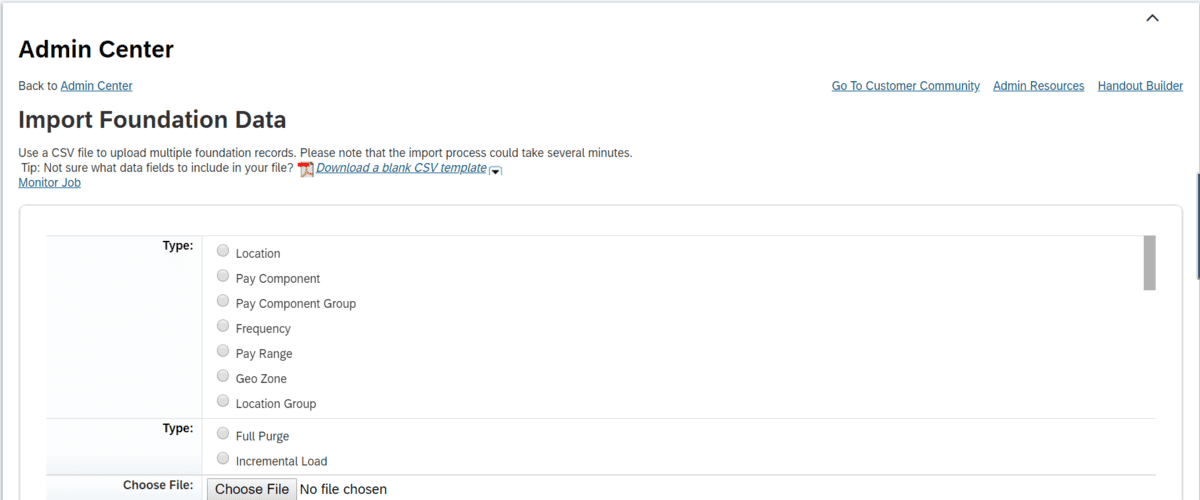
Import status is tracked by using the Admin Tool. Note that this is currently possible only in the Old Admin Tools. To view the report, navigate to the Process Job Monitor section and select Monitor Jobs.
- In SuccessFactors, data is uploaded using a CSV (Comma Separated Values) file. CSV files store records in text format, generally separated by a delimiter like a comma or tab. Files in this format can be opened by any spreadsheet or editor.
- For each type of import, a unique CSV template exists to assist with the different columns required in the file.
No. SuccessFactors only uses the content within the file and not the file itself. The name does not matter.
- By default, records for inactive employees are not processed.
- For Basic Import, to include records for inactive employees, make sure to select the Process Inactive Employees checkbox when specifying settings for the Basic Import.
- For Other Imports, complete this activity as a Full Purge Import for the employee.
- Effective dated fields have a history associated with them while non-effective dated fields do not have a history. For example, compensation-specific fields are effective dated while fields like Name and National ID are not effective dated.
In the synchronous mode, the import process is triggered immediately and the results of the import process are displayed on the Import page soon after the import process completes. For the asynchronous mode, the import process is performed in the background and the results of the import process are sent through email.
You cannot specify the mode in which the import process will run. The type of mode invoked is determined by the number of records in the file. If the number of records exceeds the Real-Time Threshold specified, the asynchronous mode of import is triggered. The asynchronous mode of import is also invoked if any of the records in the file has the &&NO_OVERWRITE&& value.
Yes, the Real-Time Threshold value can be changed to specify a lower threshold value; however the threshold value specified cannot be changed to exceed the default value already displayed in the field. Depending on the element being imported, the maximum real time threshold is either 200 or 3000. The maximum real time threshold value for each field is automatically displayed when the element is selected.
ith the exception of the Basic, Extended and Background imports, all other imports run in the synchronous mode if the number of records in the file does not exceed the Real-Time Threshold value specified or if the records in the CSV file do not contain the &&NO_OVERWRITE&& value.
- When a file is uploaded in the Full Purge mode, all existing records in the system are overwritten with the records in the file uploaded.
- When a file is uploaded using the Incremental Load option, the records in the file being uploaded are added to the records already in the system. The Incremental Load also supports a Partial Import, where only some fields of the record are updated.
- In SuccessFactors, each record is identified by a unique identifier combination known as the business key. For example, for the Address import – the unique combination of person_id_external, effective_start_date and address_type make up the business key.
- Based on this business key, when the system encounters a partial import, it verifies the uniqueness of the record and then accordingly updates only those fields that do not have the &&NO_OVERWRITE&& value or are not part of the business key.
- Note: If even 1 record has the &&NO_OVERWRITE&& value, the import will be performed asynchronously.
- A Partial Import is a type of Incremental Load update. In case of a Partial Import, only some part of the record is updated. This type of import is useful when only one specific field needs to be updated for all employees. For example, uploading email addresses for all new employees. Email addresses are generally created once the new hire has been added to the system. With Partial Import, the rest of the record can be left intact while only the email address is updated.
- Note that an option for Partial Import does not exist on the UI. See “How do you prepare a file for partial import” for information on using the Partial Import feature
- After the file uploads, you will receive an email notification. This email contains the results of your upload, including any errors that might have occurred. Errors will also be written to the CSV file as follows:
- Correct the errors and upload the file again. We suggest you validate the file for errors before uploading the file.
- This is a best practice that will save you time!
To view a list of supported encoding types, on the Import page, click the File Encoding dropdown menu. This will display a list of supported encoding types
- The following objects cannot be updated using Partial Import.
- ADDRESS: The default Address Entity does not support NO_OVERWRITE
- Because the Location FoundationObject and the EmergencyContact also refer to this address, these two columns will not support Partial Import.
- WORK_PERMIT_INFO
- PAY_CALENDAR
- JOB_RELATIONSHIPS
- JOB_FAMILY
- DYNAMIC_ROLE Foundation Object
- WF_CONFIG Foundation Object
- WF_CONFIG_CONTRIBUTOR Foundation Object
- WF_CONFIG_CC Foundation Object
- You can add your own picklists, as well as modify the value of existing picklists with the exception of Employee Status, where you can change the label but not include additional status types.
Source: SAP Knowledge Base Article Tags: #SAPSuccessfactors #EC #Data #FAQs #cloud #hr
Do you have questions?
Connect & Clarify
Like It? Share It

Shyam Reganti
Shyam is a Solution Engineer at 3Core Systems Inc, focused on helping clients with HR and Digital Transformation